

Privacy Policy
BIGDBM PRIVACY POLICY
Last Updated: December 31, 2025
Introduction
We value your privacy very highly. Please read this BIGDBM Privacy Policy
(“Privacy Policy”) carefully before using the Website operated by PublicNSA LLC
dba BIGDBM, a Limited Liability Company formed in Florida, United States (“us,”
“we,” “our”) in connection with the https://bigdbm.com website, and any other website or service that we
own or control and which posts or links to this Privacy Policy (collectively,
the “Website”). By accessing or using the Website, you agree to be bound
by this Privacy Policy. If you disagree with any part of the Privacy Policy,
then you do not have our permission to access or use the Website.
This Privacy Policy contains important information
regarding your privacy and how we may use the information we collect about you.
As used in this Privacy Policy, “Personal Information” means information that
relates to an identified individual or an identifiable individual. It
does not include aggregated, deidentified or anonymized information that is
maintained in a form that is not reasonably capable of being associated with or
linked to you or a particular household. This Privacy Policy applies to
all users of the Website, all individuals whose Personal Information we store,
including, but not limited to individuals who use, view, or otherwise access
the Website, BIGDBM Customers (as defined below), business contact information from prospective BIGDBM Customers
and their representatives, and other individuals whose Personal Information we
receive from third parties or otherwise collect, and business contact
information from suppliers and business partners and their representatives.
This Privacy Policy does not apply to:
- Personal Information which is processed by BIGDBM to provide
professional services to BIGDBM Customers. If you are a BIGDBM Customer
and BIGDBM is processing Personal Information on behalf of your company,
please refer to the fully executed Master Services Agreement and the
related Statement of Work for information on how BIGDBM manages your data
assets.
- Personal Information collected about you by BIGDBM Customers. BIGDBM
Customers are responsible for their own Personal Information collection
and processing practices, including when BIGDBM Customers use BIGDBM
products or services to process Personal Information. To find out more
about BIGDBM Customers’ use of Personal Information about you, you are
encouraged to review the relevant privacy policy of the company who
collected your Personal Information. Please consult that company directly
if you have any further questions about its collection and/or use of
Personal Information about you.
Your Privacy Rights and Choices
We offer certain privacy rights as stated below to individuals who reside in the
United States, subject to certain limitations at law. A summary of those
rights is provided below as well as information on how to exercise your
rights. We will require certain identifying information about you as
necessary for us to verify your request by applicable law.
Table 1. Summary of U.S. Consumer | |
Privacy Right | Description |
The right to direct us not to sell or share personal Residents of the USA may submit such requests via | |
Right to Know | The right to request the following information relating to – The categories of personal information we have collected – The categories of sources from which the personal – The business or commercial purposes for collecting, – The categories of third parties with whom the business – The categories of personal information sold, and for – The categories of personal information that the business Residents of the USA may submit such requests via |
Right to Access | The Residents of the USA may submit such requests via Consumer |
Right to Correct | The right to request that we correct your inaccurate Residents of the USA may submit such requests via Do |
Limit Use of Sensitive Personal Information | The right to limit Residents of |
Right to Deletion | The right to request the deletion or erasure of personal Residents of the USA may submit such requests via Do Not Sell or Share My Personal Information webform or email to privacy@bigdbm.com, or by calling the toll-free number 1-844-693-2820. If |
Right to Non-Discrimination | The right to equal treatment and no discriminatory If you believe you have received discriminatory treatment |
“Shine the Light” Law | California’s “Shine the Light” law (Civil Code § 1798.83) |
Right to Appeal: In certain circumstances, we may decline a request to exercise the
rights described above. If your request is denied, we will provide an
explanation for the denial. For any questions on these practices, please
contact us at privacy@bigdbm.com.
Unsubscribe from Marketing Communications: If you would like to unsubscribe from BIGDBM
marketing communications, please update your marketing preferences by clicking
on the “Unsubscribe” link at the bottom of the email you received, or
alternatively, by emailing BIGDBM at privacy@bigdbm.com if the Unsubscribe option in
the email is not available.
How to Exercise Your Privacy Rights and Choices
When you submit your rights requests, we will ask you to provide your name and
contact information so that we can communicate with you regarding your request
and process your request. In addition, for your privacy and security and
to prevent fraud or other harmful activities, we may ask for information that
we will use to verify your identity as permitted by law. For requests of
specific pieces of personal information about a consumer, we will verify your
identity to a reasonably high degree of certainty; whereas for requests to know
categories of information, requests to correct or for requests to delete we
will verify your identity to a reasonable degree of certainty. Providing
accurate information that matches our records is necessary so that we can
locate the correct information within our systems and among our service
providers. The information we may ask you to provide includes your name,
mailing address, and either your mobile phone number or your email address.
Do not send us, directly or indirectly, any sensitive or special categories of
Personal Information (e.g., social security numbers or other national or state
identifiers, health information, biometric data or genetic characteristics,
criminal background information, financial account numbers, payment card
information, and so on) on or through the Website or otherwise.
We will evaluate and respond to your request to the extent required by law (or at our
discretion if not required by law) and as permitted by our contracts,
confidentiality obligations, and applicable laws and regulations. We may not be
able to provide all of the information requested due to certain exceptions
enumerated in other applicable laws. If we do not have sufficient information
about you to verify your identity, we may not be able to identify you and will
be unable to process your request. We will attempt to verify your identity by
using the information you submit with your request and matching it with the
information we possess about you. We may need to request additional information
to sufficiently identify you.
Authorized Agents
In certain circumstances, you are permitted to use an authorized agent to submit
privacy rights requests on your behalf. We may verify the authorized agent’s
authority to act on your behalf as follows: For requests to opt-out of personal
information “sales” or “sharing,” we may ask you to provide a signed permission
demonstrating your authorized agent has been authorized by you to act on your
behalf. For all other requests, we may ask you to provide sufficient
evidence to show that you have provided the authorized agent signed permission
to act on your behalf, verified your own identity directly with us pursuant to
the instructions set forth in this Privacy Policy, and directly confirmed with
us that you provided the authorized agent permission to submit the request on
your behalf.
How to Opt Out of Interest Based Advertising
You also have options to change settings in your devices to opt out of
interest-based advertising. Opting out of interest-based advertising is
optional and does not mean you will no longer see advertising on the content or
applications. It means that you may not be shown advertisements that have been
tailored to your interests. Interest-based ads may be blocked by your service
provider(s) whenever possible but sometimes device settings or browser settings
may prevent your service provider(s) from setting opt-out configuration. See
below for instructions on how to opt out.
On Your Mobile Device (Mobile Ad IDs (MAIDs) Privacy Preference Management)
You can manage your privacy preferences on your mobile
device by adjusting your advertising preferences within their device settings.
For example:
To adjust your advertising preferences in iOS (version
12.4 and earlier), visit Settings > Privacy > Advertising > Limit Ad
Tracking or Settings > Privacy > Advertising > Reset Advertising ID.
For version 14.5 and later, please visit Apple Support here.
To adjust your advertising preferences in Android, visit
Settings > Google > Ads > Opt out of interest-based ads or Settings
> Google Services & Preferences > Ads > Opt out of Ads
Personalization; and,
Links to https://youradchoices.com/appchoices to download the AppChoices Tool to control
interest-based advertising on apps on mobile devices and https://thenai.org/opt-out/mobile-opt-out/ for more information and instructions on opting out
on mobile devices.
On Your
CTV Devices
For suggestions on using the advertising choice mechanisms
provided by the most popular CTV devices see Appendix
1 – CTV Device Preference Management below, or navigate directly to each CTV Device Manufacturer’s
website for more information.
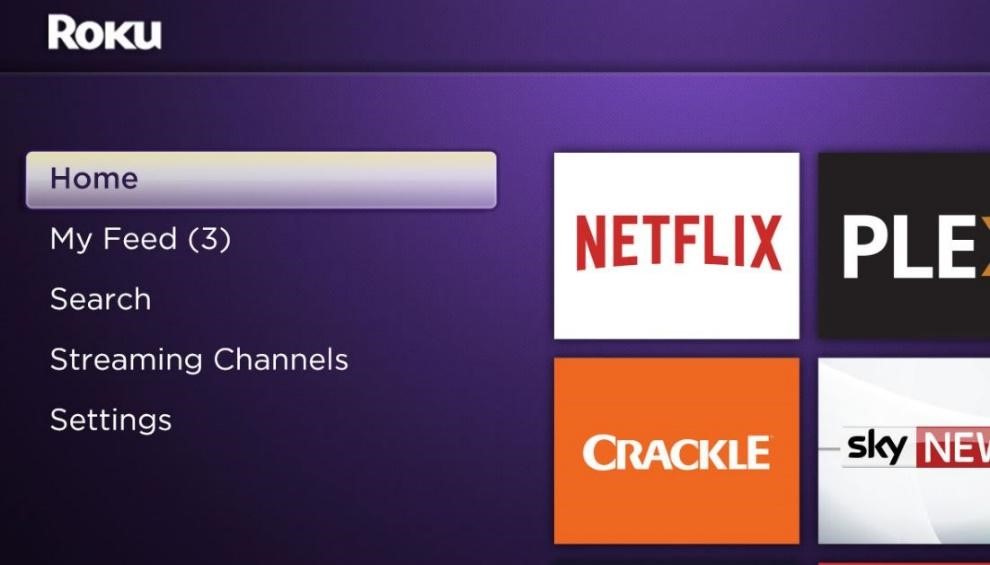
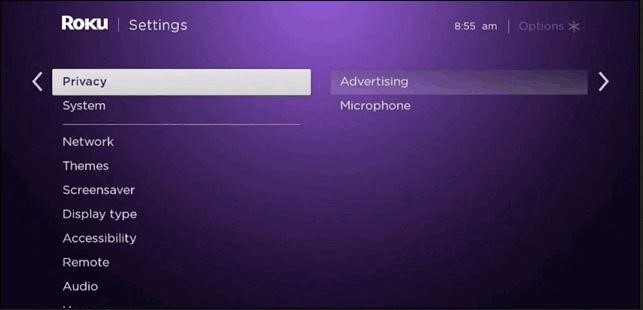
- Roku – see https://docs.roku.com/published/userprivacypolicy/en/us for more information.
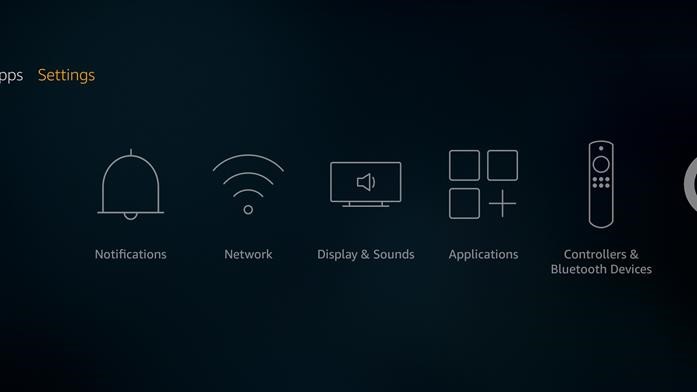
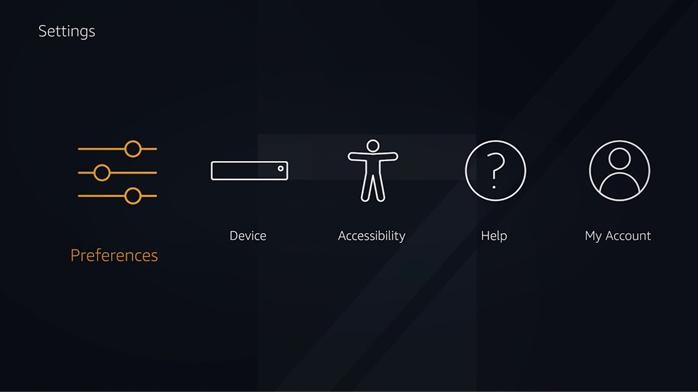
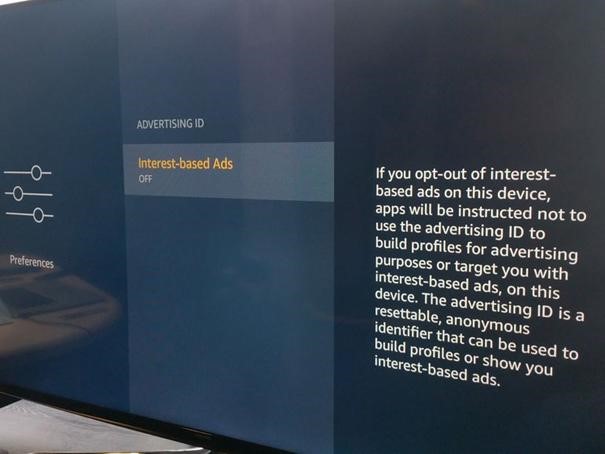
- Amazon Fire TV – see https://www.amazon.com/gp/help/customer/display.html?nodeId=GQFYXZHZB2H629WN for more information.
- Google Chromecast – see https://support.google.com/chromecast/answer/6076570?hl=en&co=GENIE.Platform%3DAndroid for more information.
- Apple TV – see https://www.apple.com/legal/privacy/data/en/apple-tv-app/#:~:text=Apple%20collects%20information%20about%20what,watching%20across%20your%20supported%20devices for more information.
- Samsung Smart TV – see https://www.samsung.com/hk_en/info/privacy/smarttv/for more information.
Type of Personal Information We Collect; Sources of
Information; How We Use This Information; What happens if we don’t have it;
Legal Basis for Processing
The tables below describe our data practices in the last
12 months. For purposes of this Privacy Policy, when we use the term “third
party” we mean entities that are not service providers or contractors providing
services on behalf of us and that are not entities with whom you interact with
directly.
Table 2. Categories of Personal | |||||
Category of | A specific piece | Legal basis for | Where do we get | How we use this | What happens if we |
Identifying | Name | ● | ● Surveys; ● ● | ● Analytics; ● ● ● ● ● ● ● | ● Our use of your data for analytics will not be possible; ● ● ● ● ● ● |
Identifying | Postal / Shipping | ● | ● Surveys; ● ● | ● Analytics; ● ● ● ● ● ● ● | ● Our use of your data for analytics will not be possible; ● ● ● ● ● ● |
Identifying | Phone number | ● | ● Surveys; ● ● | ● Analytics; ● ● ● ● ● ● ● | ● Our use of your data for analytics will not be possible; ● ● ● ● ● ● |
Identifying | IP address | ● | ● Surveys; ● ● | ● Analytics; ● ● ● ● ● ● ● | ● Our use of your data for analytics will not be possible; ● ● ● ● ● ● |
Identifying | Email address | ● | ● Surveys; ● ● | ● Analytics; ● ● ● ● ● ● ● | ● Our use of your data for analytics will not be possible; ● ● ● ● ● ● |
Identifying | Device identifier | ● | ● Surveys; ● ● | ● Analytics; ● ● ● ● ● ● ● | ● Our use of your data for analytics will not be possible; ● ● ● ● ● ● |
Identifying | Alias | ● | ● Surveys; ● ● | ● Analytics; ● ● ● ● ● ● ● | ● Our use of your data for analytics will not be possible; ● ● ● ● ● ● |
Identifying | Online identifier | ● | ● | ● Analytics; ● ● ● ● ● ● ● | ● Our use of your data for analytics will not be possible; ● ● ● ● ● ● |
Identifying | Account name | ● | ● Surveys; ● ● | ● Analytics; ● ● ● ● ● ● ● | ● Our use of your data for analytics will not be possible; ● ● ● ● ● ● |
Employment | Job Title | ● | ● Surveys; ● ● | ● Analytics; ● ● ● ● ● ● ● | ● Our use of your data for analytics will not be possible; ● ● ● ● ● ● |
Characteristics of | Age | ● | ● Surveys; ● ● | ● Analytics; ● ● ● ● ● ● ● | ● Our use of your data for analytics will not be possible; ● ● ● ● ● ● |
Characteristics of | Marital status | ● | ● Surveys; ● ● | ● Analytics; ● ● ● ● ● ● ● | ● Our use of your data for analytics will not be possible; ● ● ● ● ● ● |
Characteristics of | Sex | ● | ● Surveys; ● ● | ● Analytics; ● ● ● ● ● ● ● | ● Our use of your data for analytics will not be possible; ● ● ● ● ● ● |
Commercial | Records of personal | ● | ● Surveys; ● ● | ● Analytics; ● ● ● ● ● ● ● | ● Our use of your data for analytics will not be possible; ● ● ● ● ● ● |
Commercial | Purchasing or | ● | ● Surveys; ● ● | ● Analytics; ● ● ● ● ● ● ● | ● Our use of your data for analytics will not be possible; ● ● ● ● ● ● |
Internet or other | Browsing history | ● | ● Surveys; ● ● | ● Analytics; ● ● ● ● ● ● ● | ● Our use of your data for analytics will not be possible; ● ● ● ● ● ● |
Internet or other | Search History | ● | ● Surveys; ● ● | ● Analytics; ● ● ● ● ● ● ● | ● Our use of your data for analytics will not be possible; ● ● ● ● ● ● |
Internet or other | Information | ● | ● Surveys; ● ● | ● Analytics; ● ● ● ● ● ● ● | ● Our use of your data for analytics will not be possible; ● ● ● ● ● ● |
Consumer profiling | Inferences are | ● | ● Surveys; ● ● | ● Analytics; ● ● ● ● ● ● ● | ● Our use of your data for analytics will not be possible; ● ● ● ● ● ● |
Sensitive personal | Race | ● | ● Surveys; ● ● | ● Analytics; ● ● ● ● ● ● ● | ● Our use of your data for analytics will not be possible; ● ● ● ● ● ● |
Sensitive personal | National origin | ● | ● Surveys; ● ● | ● Analytics; ● ● ● ● ● ● ● | ● Our use of your data for analytics will not be possible; ● ● ● ● ● ● |
Sensitive personal | Religion | ● | ● Surveys; ● ● | ● Analytics; ● ● ● ● ● ● ● | ● Our use of your data for analytics will not be possible; ● ● ● ● ● ● |
Sensitive personal | Ancestry | ● | ● Surveys; ● ● | ● Analytics; ● ● ● ● ● ● ● | ● Our use of your data for analytics will not be possible; ● ● ● ● ● ● |
In addition to the information provided in the table
above, we may use your Personal Information for the following purposes:
BIGDBM helps businesses market more effectively by
providing marketing data products created using Personal Information collected
as set forth above (“Products”) that help them learn valuable insights and
understand more about their clients and prospects. Our Products analyze
client and prospect data to allow businesses to provide more targeted and
meaningful offers, messages, and customer experiences in an offline and online
context.
Our Products are designed to provide more insight and
contact information on individuals and households in the US.
More specifically, we may use your Personal Information
for the following business purposes and as otherwise described in this Privacy
Policy or at the time of collection:
To operate the Service and Products. We may use your Personal Information to:
• provide, operate, and improve the Service and Products •
provide information about the Service and Products • establish and maintain
your user profile on the Service • enable security features of the Service or
Products • communicate with you about the Service and Products • provide
support and maintenance for the Service and Products • respond to your
requests, questions, and feedback
For research and development. We may analyze the use of the Services and Products
to optimize and improve them and to develop new services and products.
For compliance, fraud prevention, and safety. We may use your Personal Information and disclose it
to law enforcement, government authorities, and private parties as we believe
necessary or appropriate to (a) comply with applicable laws, lawful requests,
and legal process; (b) protect our, your, or others’ rights, privacy, safety or
property (including by making and defending legal claims); (c) enforce the
terms and conditions that govern the Service and Products; (d) protect,
investigate and deter against fraudulent, harmful, unauthorized, unethical or
illegal activity; and (e) conduct, complete, or respond to audits or audit
results. With your consent. In some cases, we may specifically
ask for your consent to collect, use or share your Personal Information, such
as when required by applicable law.
To process applications. We may use your Personal Information to review and evaluate your applications to
work with or for BIGDBM or otherwise respond to you regarding such inquiries.
To create anonymous, aggregated, or de-identified data. We may create anonymous, aggregated, or
de-identified data from your Personal Information and other individuals whose
Personal Information we collect. We make Personal Information into anonymous,
aggregated, or de-identified data by removing information that makes the data
personally identifiable to you and we do not attempt to
re-identify such data. We may use this anonymous, aggregated, or
de-identified data and share it with third parties, including Near. co and others, for our lawful
operational purposes, including analyzing and improving the Service and
Products and promoting our operations.
Direct marketing. We use the information that we collect about you for direct marketing purposes. Direct
marketing is the act of selling products or services directly to consumers
rather than through retailers. Residents of the European Union and/or the
European Economic Area and the United Kingdom – You may, at any time, request
that we cease to use your information for direct marketing purposes by emailing
us at privacy@bigdbm.com.
Profiling. We use the information that we collect about you for profiling. Profiling is any form
of automated processing of personal information consisting of the use of
personal information to evaluate certain personal aspects relating to a person,
in particular, to analyze or predict aspects concerning that person’s
performance at work, economic situation, health, personal preferences,
interests, reliability, behavior, location or movements.
We use the following logic to conduct profiling: Recency,
Frequency, Intensity, Strength
Automated decision-making. We use the information that we collect about you for
automated individual decision-making. Automated individual decision-making is
making a decision solely by automated means without any human involvement.
We use the following logic to conduct automated
decision-making: Recency, Frequency, Intensity, Strength
With Whom We Share Your Personal Information
We share the personal information below with the following third parties for the
following reasons:
Table 3. Categories of Personal | |||
Category of | A specific piece | Categories of | Reasons for |
Identifying | Name | ● Advertising networks; ● ● ● ● | ● To market to you via email; ● ● |
Identifying | Postal / Shipping | ● Advertising networks; ● ● ● ● | ● To market to you via email; ● ● |
Identifying | Phone number | ● Advertising networks; ● ● ● ● | ● To market to you via email; ● ● |
Identifying | IP address | ● Advertising networks; ● ● ● ● | ● To market to you via email; ● ● |
Identifying | Email address | ● Advertising networks; ● ● ● ● | ● To market to you via email; ● ● |
Identifying | Device identifier | ● Advertising networks; ● ● ● ● | ● To market to you via email; ● ● |
Identifying | Alias | ● Advertising networks; ● ● ● ● | ● To market to you via email; ● ● |
Identifying | Online identifier | ● Advertising networks; ● ● ● | ● To market to you via email; ● ● |
Identifying | Account name | ● Advertising networks; ● ● ● ● | ● To market to you via email; ● ● |
Characteristics of | Age | ● Advertising networks; ● ● ● ● | ● To market to you via email; ● ● |
Characteristics of | Marital status | ● Advertising networks; ● ● ● ● | ● To market to you via email; ● ● |
Characteristics of | Sex | ● Advertising networks; ● ● ● ● | ● To market to you via email; ● ● |
Commercial | Records of personal | ● Advertising networks; ● ● ● ● | ● To market to you via email; ● ● |
Commercial | Purchasing or | ● Advertising networks; ● ● ● ● | ● To market to you via email; ● ● |
Internet or other | Browsing history | ● Advertising networks; ● ● ● ● | ● To market to you via email; ● ● |
Internet or other | Search History | ● Advertising networks; ● ● ● ● | ● To market to you via email; ● ● |
Internet or other | Information | ● Advertising networks; ● ● ● ● | ● To market to you via email; ● ● |
Consumer profiling | Inferences are | ● Advertising networks; ● ● ● ● | ● To market to you via email; ● ● |
Sensitive personal | Race | ● Advertising networks; ● ● ● ● | ● To market to you via email; ● ● |
Sensitive personal | National origin | ● Advertising networks; ● ● ● ● | ● To market to you via email; ● ● |
Sensitive personal | Religion | ● Advertising networks; ● ● ● ● | ● To market to you via email; ● ● |
Sensitive personal | Ancestry | ● Advertising networks; ● ● ● ● | ● To market to you via email; ● ● |
In addition to the information provided in the table
above, we may disclose your Personal Information for a Business Purpose or
share your Personal Information as follows:
BIGDBM employees. We share Personal Information with our employees only to the extent necessary to
serve the applicable purpose(s) and to perform their job functions.
Affiliates. We may share your Personal Information with subsidiaries and affiliates for
purposes consistent with this Privacy Policy.
Business and marketing partners. Third-party marketing partners, companies operating in the
ad tech sector, and digital advertisers, with whom we co-sponsor events or
promotions, with whom we jointly offer products or services, or whose products
or services may be of interest to you.
Service providers. We may share your Personal Information with third-party companies, consultants,
and individuals that provide services on our behalf or help us operate the
Service or provide our Products (such as hosting, infrastructure, email
delivery, marketing, and database management services). These third parties may
use your Personal Information only as directed or authorized by us and in a
manner consistent with this Privacy Policy and are prohibited from using or
disclosing your information for any other purpose.
Sale of Products. NOTICE:
We may sell your sensitive personal data. We may disclose Personal
Information in connection with the sale of our Products to BIGDBM Customers,
including advertising networks, internet service providers, data analytics
providers, operating systems and platforms, social networks, and data
resellers.
Professional advisors. We may disclose your Personal Information to professional advisors, such as
bankers, auditors, insurers, and attorneys, where necessary in the course of
the professional services they render to us.
For compliance, fraud prevention, and safety. We may disclose your Personal Information to law
enforcement, government authorities, and private parties as we believe
necessary or appropriate to (a) comply with applicable laws, lawful requests,
and legal process; (b) protect our, your, or others’ rights, privacy, safety or
property (including by making and defending legal claims); (c) enforce the
terms and conditions that govern the Service and Products; (d) protect,
investigate and deter against fraudulent, harmful, unauthorized, unethical or
illegal activity; and (e) conduct, complete, or respond to audits or audit
results.
Business transfers. We may transfer or otherwise share some or all of our operations or assets,
including your Personal Information, in connection with a transaction (or
potential transaction) such as a corporate divestiture, merger, consolidation,
acquisition, reorganization, or transfer of assets, where any Personal
Information included in such transfer is subject to protections no less
restrictive than those herein.
With your consent. We may otherwise share your Personal Information with your consent or under your
instructions.
Sale of your information
We sell the following Personal Information to the following categories of third
parties:
Table 4. Categories of Personal | ||
Categories of | Specific pieces of | Categories of |
Identifying | Name | ∙ Advertising networks; ∙ Customer ∙ Data ∙ Data ∙ Data ∙ Email ∙ Financial ∙ Government |
Identifying | Postal / Shipping | ∙ Advertising networks; ∙ Customer ∙ Data ∙ Data ∙ Data ∙ Email ∙ Financial ∙ Government |
Identifying | Phone number | ∙ Advertising networks; ∙ Customer ∙ Data ∙ Data ∙ Data ∙ Email ∙ Financial ∙ Government |
Identifying | IP address | ∙ Advertising networks; ∙ Customer ∙ Data ∙ Data ∙ Data ∙ Email ∙ Financial ∙ Government |
Identifying | Email address | ∙ Advertising networks; ∙ Customer ∙ Data ∙ Data ∙ Data ∙ Email ∙ Financial ∙ Government |
Identifying | Device identifier | ∙ Advertising networks; ∙ Customer ∙ Data ∙ Data ∙ Data ∙ Email ∙ Financial ∙ Government |
Identifying | Alias | ∙ Advertising networks; ∙ Customer ∙ Data ∙ Data ∙ Data ∙ Email ∙ Financial ∙ Government |
Identifying | Online identifier | ∙ Advertising networks; ∙ Customer ∙ Data ∙ Data ∙ Data ∙ Email ∙ Financial ∙ Government |
Identifying | Account name | ∙ Advertising networks; ∙ Customer ∙ Data ∙ Data ∙ Data ∙ Email ∙ Financial ∙ Government |
Characteristics of | Age | ∙ Advertising networks; ∙ Customer ∙ Data ∙ Data ∙ Data ∙ Email ∙ Financial ∙ Government |
Characteristics of | Marital status | ∙ Advertising networks; ∙ Customer ∙ Data ∙ Data ∙ Data ∙ Email ∙ Financial ∙ Government |
Characteristics of | Sex | ∙ Advertising networks; ∙ Customer ∙ Data ∙ Data ∙ Data ∙ Email ∙ Financial ∙ Government |
Commercial | Records of personal | ∙ Advertising networks; ∙ Customer ∙ Data ∙ Data ∙ Data ∙ Email ∙ Financial ∙ Government |
Commercial | Purchasing or | ∙ Advertising networks; ∙ Customer ∙ Data ∙ Data ∙ Data ∙ Email ∙ Financial ∙ Government |
Internet or other | Browsing history | ∙ Advertising networks; ∙ Customer ∙ Data ∙ Data ∙ Data ∙ Email ∙ Financial ∙ Government |
Internet or other | Search History | ∙ Advertising networks; ∙ Customer ∙ Data ∙ Data ∙ Data ∙ Email ∙ Financial ∙ Government |
Internet or other | Information | ∙ Advertising networks; ∙ Customer ∙ Data ∙ Data ∙ Data ∙ Email ∙ Financial ∙ Government |
Consumer profiling | Inferences are | ∙ Advertising networks; ∙ Customer ∙ Data ∙ Data ∙ Data ∙ Email ∙ Financial ∙ Government |
Sensitive personal | Race | ∙ Advertising networks; ∙ Customer ∙ Data ∙ Data ∙ Data ∙ Email ∙ Financial ∙ Government |
Sensitive personal | National origin | ∙ Advertising networks; ∙ Customer ∙ Data ∙ Data ∙ Data ∙ Email ∙ Financial ∙ Government |
Sensitive personal | Religion | ∙ Advertising networks; ∙ Customer ∙ Data ∙ Data ∙ Data ∙ Email ∙ Financial ∙ Government |
Sensitive personal | Ancestry | ∙ Advertising networks; ∙ Customer ∙ Data ∙ Data ∙ Data ∙ Email ∙ Financial ∙ Government |
In addition to the categories listed in the table above, we may sell the Personal
Information set forth above to the following categories of recipients:
- Automotive Companies
- Business Services/Agency
- Consumer Services Companies
- Consumer Packaged Goods Companies
- Data Companies
- Educational Institutions & Companies
- Energy and Utility Companies
- Financial Services Companies
- Food & Beverage Companies
- Health Product Companies
- Insurance Companies
- Manufacturing Companies
- Marketing and Research Companies
- Media and Publishing Companies
- Not for Profit Organizations
- Public Institutions
- Retail Companies
- Technology/Computer Software Companies
- Telecommunications Companies
- Travel, Leisure & Entertainment Companies
- Other Companies not Categorized
For Rhode Island residents, a list of all third
parties to whom we have sold or may sell your personally
identifiable information is available here.
Cookies
What cookies and similar technologies do we use on the Website?
Cookies and similar technologies (e.g., pixels tags and device identifiers) may be used
by BIGDBM and our advertising technology partners to recognize you and/or your
device(s) on, off, and across different services and devices for the purposes
specified in Sections above. Cookies are small text files that contain a string
of characters and uniquely identify a browser on a device connected to the
Internet.
When do we use cookies and similar technologies?
Some of our vendors place cookies in your browser when you
visit their sites. Depending on your jurisdiction, you may be presented with
different consent options, including the option to reject all non-essential
cookies, before BIGDBM or our vendors place cookies on your browser.
We use cookies and other technologies on the Website to
ensure the best possible and secure experience on the Website and to provide
you with tailored information on products and services. BIGDBM and its vendors
also use cookies or similar technologies on its sites to collect online
information such as your mobile device ID, IP address, and other information
about your device, as well as behavioral data of your device usage on our sites
(e.g. pages viewed, links clicked, documents downloaded).
How can I manage my cookie preferences?
If you do not want to receive cookies, you can also change
your browser settings on your computer or other device you are using
to access our services. Most browsers also provide functionality that lets you
review and delete cookies, including BIGDBM and its vendors’ cookies.
Children’s Privacy
This Website is intended for use by a general audience and
does not offer services to children. Should a child whom we know to be under 18
send personal information to us, we will use that information only to respond
to that child to inform him or her that they cannot use this Website. We do not
sell the Personal Information of any individual under the age of 18.
If you believe that we have mistakenly or unintentionally
collected the personal information of a minor without appropriate consent,
please notify us through requests via the Do Not Sell or Share My Personal Information webform or email to privacy@bigdbm.com.
Information Retention
BIGDBM maintains Personal Information for the following
retention periods:
We will retain your Personal Information for as long as is
necessary for the purposes for which it was collected. The precise period will
depend on the reason why it was collected. Those periods are also based on the
requirements of applicable laws, applicable legal and regulatory requirements,
and periods relating to the commencement of legal actions.
Personal Information needed to retain your opt-out
preferences is retained for 20 years (or longer as necessary to comply with
applicable law).
We retain the following personal information for the
following periods:
Table 5. Categories of Personal | |
Category of | Data retention |
Identifying | 1 year |
Employment | 14 days |
Characteristics of | 1 year |
Commercial | 1 year |
Internet or other | 1 year |
Consumer profiling | 1 year |
Sensitive personal | 1 year |
Your GDPR Rights
Where we process personal information pertaining to
someone located in the European Economic Area or the United Kingdom, you have
the following rights, subject to certain limitations at
law:
Table 6. Summary of GDPR Rights | |
GDPR Right | Description |
Right to be informed | You have the right to be provided with information about |
Right to access and rectification | You have the right to access, correct or update your |
Right to data portability | The personal information you have provided us with may be |
Right to be forgotten | Under certain circumstances, you have right to request |
Right to restrict processing | Under certain circumstances, you have the right to |
Right to object | Under certain circumstances, you have the right to object |
Right to withdraw consent | If you have given your consent to anything we do with your |
Rights related to automated decision-making | You have the right not to be subject to a decision which |
The right to lodge a complaint with a Supervisory Authority. You have the right to
lodge a complaint directly with any local Supervisory Authority about how we
process your personal data.
Other Important Information
Information We Collect Directly. PublicNSA LLC
dba BIGDBM collects personal information when visitors provide such information
on our website, such as during registration, to request services, or through
contact forms. We also may collect payment and authentication information depending
on the services that you request from us.
Information We Collect Automatically. BIGDBM automatically receives and stores certain
types of information whenever a visitor interacts with the BIGDBM website. For
example, BIGDBM automatically receives and records certain “traffic data” on
our server logs, including a visitor’s IP address, the page requested, and
interactions with the BIGDBM website. BIGDBM also automatically collects usage
information, such as the number of and frequency of visitors to our site and
their use of the BIGDBM service.
Third-Party Websites
The Website may contain hyperlinks to websites operated by parties other than us.
We provide such hyperlinks for your reference only. We do not control such
websites and are not responsible for their contents or the privacy or other
practices of such websites. It is up to you to read and fully understand their
privacy policies. Our inclusion of hyperlinks to such websites does not imply
any endorsement of the material on such websites or any association with their
operators. BIGDBM does not have any control over these features of other
parties. The personal information you provide on third-party sites is not
controlled by BIGDBM. We encourage you to review the privacy policies of these
parties before using these features.
Location of data processing
All data processing activities undertaken by BIGDBM take
place in the United States.
Data Accuracy
BIGDBM maintains quality control procedures to ensure the
Personal Information we store is as accurate and complete as reasonably
possible. We have developed proprietary technology to constantly evaluate the
accuracy of the Personal Information we store, identify inaccurate Personal
Information, and update the Personal Information as applicable and as
reasonably practicable.
Security
BIGDBM maintains organizational, technical, and physical
security procedures, including those required by applicable laws, designed to
protect the Personal Information we store from accidental or unlawful
destruction or accidental loss, damage, alteration, unauthorized disclosure, or
access, as well as all other forms of unlawful processing. Measures are taken
to prevent unauthorized access, alteration, or dissemination of personal
information. We also maintain physical security for our facilities and limit
access to certain critical areas of our business. However, security risk is
inherent in all internet and information technologies, and we cannot guarantee
the security of your Personal Information.
If we learn of and confirm the occurrence of a security
incident leading to the misappropriation or accidental or unlawful destruction,
loss, alteration, unauthorized disclosure of, or access to, your Personal
Information transmitted, stored or otherwise processed on our systems that
compromises the confidentiality, integrity or availability of your Personal
Information, we may attempt to notify you electronically by posting a notice on
the Website or by sending you an email or otherwise by applicable law.
Changes to this Privacy Policy
BIGDBM may revise this Privacy Policy from time to time.
We reserve the right to amend this Privacy Policy at any time. Any changes to
this Privacy Policy will be posted here or in other successor locations
available from this page. You can determine when this Privacy Policy was last
revised by checking the “Last Revised” legend at the bottom of this Privacy
Policy.
Filing a Complaint
If you have any complaints regarding our compliance with
this Privacy Policy, please contact us. We will investigate and attempt to
resolve complaints and disputes regarding the use and disclosure of Personal
Information by this Privacy Policy and by applicable law. You also have the
right to file a complaint with a competent data protection authority.
Information on the consumer requests that we have received
Below is additional information on the requests to
exercise privacy rights that we have received from California consumers:
We have received 6,516 requests to know. We complied
in whole or in part with 6,510 and denied 6 of these requests.
We have received 44,114 requests to delete. We
complied in whole or in part with 44,002 and denied 112 of
these requests.
We have received 92,321 requests to opt out. We
complied in whole or in part with 92,321 and denied 0 of
these requests.
Regarding California only:
Total number of requests to delete, to know, to access, to
opt-out of sale or sharing, or to limit the use of a consumer’s personal
information that BIGDBM received, complied with in whole or in part, and denied
during the previous calendar year were 11,873 in total.
The median and the mean number of days within which the
data broker substantively responded to requests to delete, to know, to access,
to opt-out of sale or sharing, or to limit the use of a consumer’s personal
information that the data broker received during the previous calendar year is
3 days.
The number of requests in which deletion was not required
in whole, or in part, under each provision in California Civil Code section
1798.145 or 1798.146 was 689 records.
The median number of days within which we have
substantively responded to these requests is 6 days.
Information on the consumer requests that we have received Below is additional information on the requests to exercise privacy
rights that we have received from New Jersey consumers: We have received 4
requests to know. We complied in whole or in part with 4 and denied 0 of
these requests. We have received 34,520 requests to delete. We complied in
whole or in part with 34,508 and denied 12 of these requests. We have
received 82,524 requests to opt out. We complied in whole or in part with
82,524 and denied 0 of these requests. Regarding New Jersey only: Total
number of requests to delete, to know, to access, to opt-out of sale or
sharing, or to limit the use of a consumer’s personal information that BIGDBM
received, complied with in whole or in part, and denied during the previous
calendar year were 34,309 in total. The median and the mean number of days
within which the data broker substantively responded to requests to delete, to
know, to access, to opt-out of sale or sharing, or to limit the use of a consumer’s
personal information that the data broker received during the previous calendar
year is 3 days. The number of requests in which deletion was not required in
whole, or in part, under each provision in Daniel’s Law is a New Jersey state
statute (N.J.S.A. § 56:8‑166.1 et seq.), enacted on November 20, 2020
(effective December 10, 2021) was 3261 records. The median number of days within
which we have substantively responded to these requests is 5 days.
Data Protection Officer
Brad Mack is our Data Protection Officer and may be
reached via email at brad@bigdbm.com.
Do Not Track
Do Not Track is a preference you can set on your browser
to inform websites that you do not want to be tracked. We do not support Do Not
Track (“DNT”). You can either enable or disable Do Not Track by visiting the
preferences or settings page of your browser.
Questions
If you have any questions about this Privacy Policy,
please contact us at privacy@bigdbm.com.
Appendix 1 – CTV Device Preference Management Suggestions
Disclaimer: The following CTV instructions are subject to
change and are provided for general guidance. This CTV material and information
is for general information purposes only. You should not rely upon the CTV
material or information as a basis for making actual changes to your CTV device
settings. Contact your CTV Device Company Directly for exact instructions on
how to manage your advertising choice mechanisms. BIGDBM makes no
representations or warranties of any kind, express or implied about the completeness,
accuracy, reliability, or suitability of the CTV information below. Any
reliance you place on such material is therefore strictly at your own risk.
Roku:
Amazon Fire TV:
Google Chromecast:
Please follow below steps to turn off Chromecast and Chromecast Ultra’s collection of usage data and crash reports.
Download Google Home App on your phone or tablet
Open the app and select the Menu icon (the three lines in the upper left corner),
Choose Devices, look for the Chromecast device you want to control and hit the three dots in the upper left of its tile 4. Choose Settings and uncheck the box next to “Send Chromecast device usage data and crash reports to Google.”
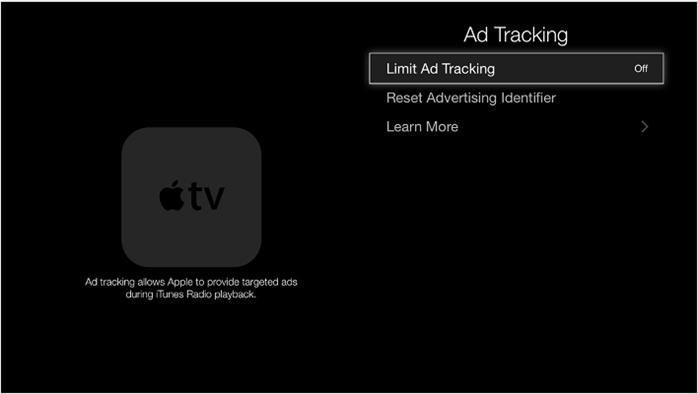
Apple TV:
Step 1
Go to the menu for your Apple TV and select Settings.
Step 2
Select the General option from the Settings menu and continue to the Privacy option.
Step 3
Choose the top option, Limit Ad Tracking. If the function is turned off, turn it on. Then continue using the device as you normally do.
Samsung Smart TV:
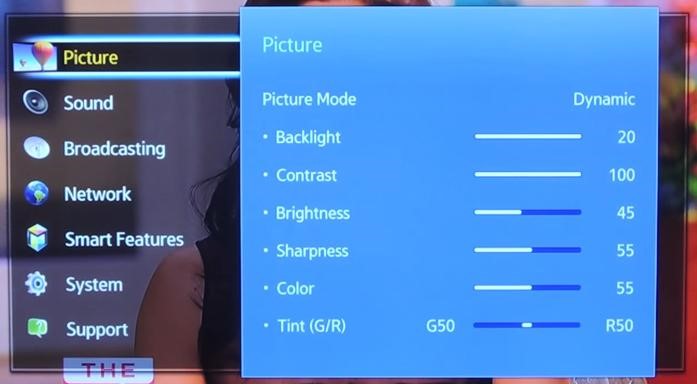
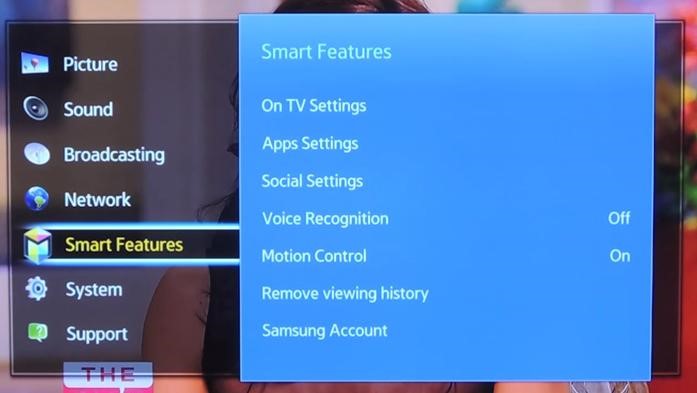
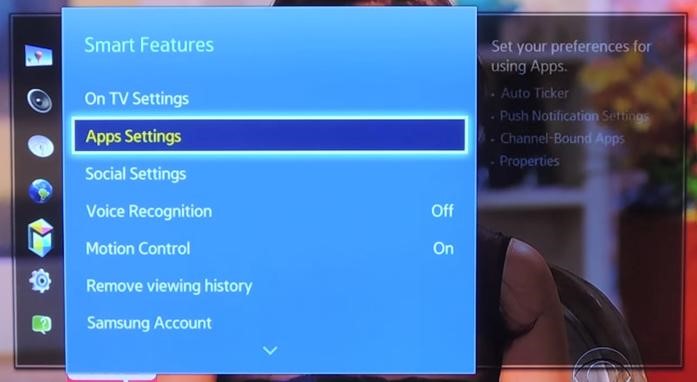
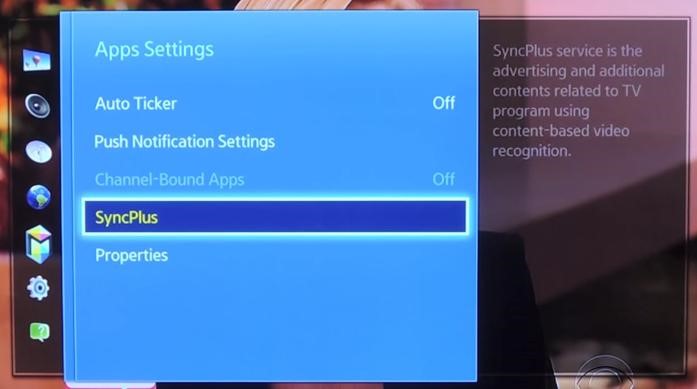
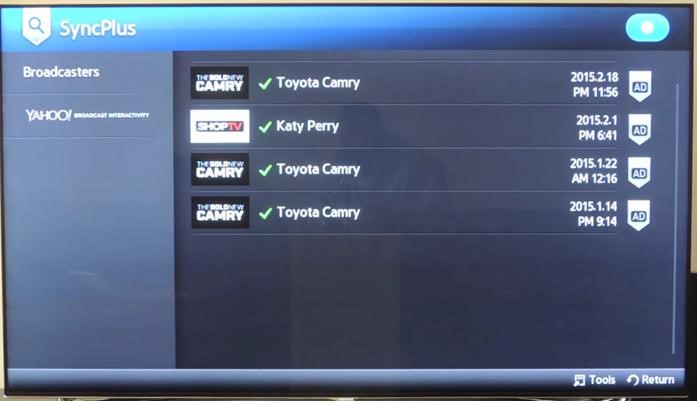
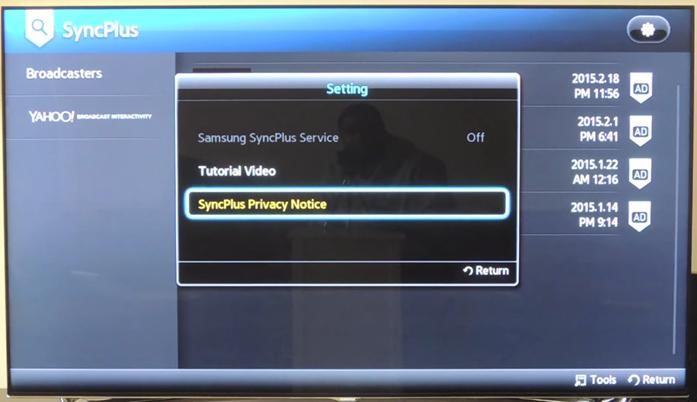
Please note:
Limiting the ad tracking feature is totally optional and only pauses the advertisers from reading the very little data of your preferences which may be used to serve you with some of the ads that are tailored for your interest. It does not mean that you will no longer see advertising on the content or apps.